I've turned my WordPress Site Editor simplification concept into a real Gutenberg pull request - and you can test it yourself in WordPress Playground with one click.
A few months back I showed this as a concept. You wanted a real PR, not just a demo. So that's what I built.
I take you through the whole thing - a stripped-back sidebar, smarter page creation, a unified editing canvas, better navigation menus, a content types browser, and a first look at the Workspaces concept. Mockups create opinions. Working prototypes create evidence.
👇 Check the PINNED COMMENT for the Playground link and the PR.
---
📋 Site Editor Complexity playlist: https://www.youtube.com/playlist?list=PLrseGPEoB8wM8rlu_J8qTtEW_B7bDK8ja
---
Timestamps
00:00 Introduction
00:54 Demo Start
01:54 Orientation
02:37 Homepage Discoverability
03:31 Configuring Homepage
04:21 Simplified Editor Sidebar Menu
05:27 New Pages screen
06:50 Adding Pages Flow
08:50 Universal Canvas
11:33 Swapping Page Templates
12:21 Managing Posts and Layouts
15:28 Custom Post Types
17:04 Navigation Menus Upgraded!
18:21 Auto Menus (Simplified)
20:46 Adding Menu Items
23:46 Bulk Add Menu Creation
26:12 Design & Identity
27:05 Workspaces
29:24 Customising Editor Sidebar
30:23 Test the Prototype Yourself
32:17 How to provide feedback
WordPress has a missing feature that's been quietly making the Site Editor confusing for years. In this video I walk through exactly where the pain is — and show a prototype that explores what fixing it could look like.
👇 Check the PINNED COMMENT for links to the live demo and prototype.
---
Timestamps
00:00 Introduction
00:24 Types of WordPress Pages
02:14 The Problem with the Editor
04:24 A Solution?
07:40 Progressive disclosure: power users aren't left behind
08:24 Allow for Missing Templates
09:56 Recapping the Proposal
10:18 A vision for the Editor
10:44 How to give feedback
11:09 Subscribe for more!
Setting your homepage in WordPress is harder than it should be. In this video I walk through exactly why the current experience fails beginners — then show a prototype I built that explores what a simpler, clearer approach could look like.
👇 Check the PINNED COMMENT for links to the live demo and prototype.
---
Timestamps
00:00 Introduction
00:25 The homepage problem in WordPress today
02:33 Templates add friction
05:07 A better approach - the prototype
08:47 3 Key Principles
09:07 Feedback
What would the WordPress Site Editor look like if it were designed around what users want to do, rather than how WordPress is built?
This video walks through an interactive prototype that takes a serious run at that question. The Site Editor is one of WordPress's most powerful tools - but internal research identifies it as the number one driver of negative support outcomes, and the reasons why are specific and fixable. This prototype tests what happens when you remap the editor around user goals rather than system concepts, keeping the full WordPress architecture intact underneath.
Same blocks. Same templates. Same data model. Different entry points, different language, different defaults.
The prototype is live and free to try - see the pinned comment for the link.
Built during Automattic's Radical Speed Month - a one-month experiment giving small teams full autonomy to build without the usual approval layers. This is not an official WordPress product and doesn't represent any official roadmap. It's an experiment, and this video is the start of a wider conversation.
What resonated? What would you change? Leave your thoughts in the comments.
Navigation is one of the most important — and most frustrating — parts of building a WordPress site.
With the WordPress 7.0 roadmap now published, two major Navigation initiatives have been accepted that will level up how menus are designed, edited, and maintained in WordPress.
In this video, I walk you through what’s changing, why it matters, and show the real work already underway — including early prototypes and demos.
👨💻 I’m Dave Smith — full-time WordPress Core contributor. I help folks stay ahead of what’s coming to the Block Editor.
⸻
🔎 What You’ll Learn:
• The two Navigation initiatives planned for WordPress 7.0
• Why Navigation has remained a pain point for so many users
• How customisable mobile navigation overlays will work
• How simplified, content-only Navigation editing improves clarity and confidence
• What’s already been built — and what’s coming next
⸻
💬 What would YOU improve about Navigation in WordPress?
Drop your ideas in the comments — as a core contributor, I’ll make sure your feedback reaches the team.
⸻
🔗 Resource Links — please see PINNED COMMENT (below).
⸻
⏱ Timecodes
0:00 – Coming up…
0:38 – The 2 features on the roadmap
0:51 – Overview: Customisable Navigation Overlays
1:52 – Overview: Simple Navigation Editing
2:58 – Recap: Customisable Navigation Overlays
4:13 - Building Custom Overlays in the Editor
10:30 - Custom Overlay Template Parts
11:15 - Overlays on Front of Site
14:45 - What's Next for Custom Overlays?
17:21 – Recap: Simplified Navigation Editing
17:49 – Sidebar Functional Parity
22:22 – Link Creation Validation
25:59 – Fixing Broken Menus
28:16 - Feedback time!
⸻
Don’t forget to like, subscribe, and hit the notification bell for more behind-the-scenes WordPress updates 👇
Learn how to open the Global Styles panel in WordPress — the place where you can control your site’s colors, fonts, and link styles (including hover effects) all in one spot.
In this quick tutorial, I’ll show you exactly where to find it inside the Site Editor, so you can:
• Change link colors and hover styles globally
• Update typography and spacing for your theme
• Apply consistent design settings across every page
Perfect for anyone using a block theme or the Site Editor in WordPress in 2025 and beyond.
👉 Tip: Global Styles live under the Styles icon (the half-shaded circle) in the top-right corner of the editor.
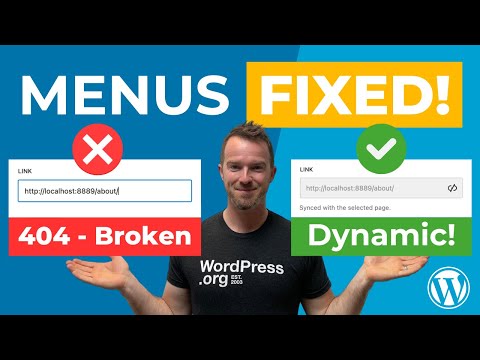
No more broken menus! In WordPress 6.9, Navigation block links can now automatically stay in sync with the pages, posts, or categories they point to — fixing a long-standing issue that caused broken links when URLs changed.
But here’s the catch: this new feature doesn’t apply to your existing menus unless you manually enable it. In this video, I’ll show you exactly how it works, how to enable it, and why it’s one of the most useful quality-of-life upgrades in WordPress 6.9.
👨💻 I’m Dave Smith — full-time WordPress Core contributor. I help folks stay ahead of what’s coming to the Block Editor.
⸻
🔎 What You’ll Learn:
• What this new Navigation Link behaviour is
• Why your existing menus won’t benefit unless you take action
• How to enable dynamic link syncing manually
• Why this change sets the stage for even more improvements in future releases
⸻
💬 What would YOU improve about Navigation in WordPress? Drop your ideas in the comments — as a core contributor, I’ll make sure your feedback reaches the team.
⸻
🔗 Resource Links - please see PINNED COMMENT (below).
⸻
⏱ Timecodes
0:00 - Coming up...
1:09 - The Problem
1:34 - Why / Explanation
2:32 - Dynamic URLs
3:36 - How does it work?
4:27 - The Catch
4:43 - FIX for existing menus
5:55 - Why Opt in?
6:48 - A good upgrade
7:36 - Future upgrades
8:06 - What do you think?
Don’t forget to **like**, **subscribe**, and hit the **notification bell** for more WordPress tips and tricks! 👇
🚀 *In this tutorial, I’ll show you how to create a CUSTOM Navigation Menu for MOBILE devices using WordPress – no coding required!*
*Skip to tutorial start:* https://www.youtube.com/watch?v=R5kzAaEsDMg&t=493s
Using the plugin I developed, you can easily create and customize mobile-only menus that enhance your site's usability and design. Perfect for non-technical WordPress users, this step-by-step guide walks you through the entire process.
### What You’ll Learn:
✅ How to build a custom navigation menu exclusively for mobile devices
✅ Styling your menus differently on mobile vs. desktop for a tailored user experience
✅ Adding unique menu items that appear only on mobile or desktop
✅ How to adjust the "breakpoint" where your mobile navigation appears or hides
✅ A full walkthrough of using my plugin to implement these features quickly and easily
✅ Improving your WordPress site’s mobile experience in just minutes
This video is a follow-up to my previous tutorial:
https://youtu.be/dY3f8sHcAPA
🔗 Resource Links - please see PINNED COMMENT (below).
⏱ Timecodes
0:00 - Coming up...
0:48 - What we're building
2:50 - Problems with Nav Block
8:13 - Creating Mobile Menu
11:57 - Custom Styling on Mobile
13:24 - Styling Toggle Button
15:31 - Different items on Mobile
20:36 - Custom Breakpoint
23:19 - Download the Plugin
24:03 - Try the Plugin NOW
25:08 - Like and Subscribe
Don’t forget to **like**, **subscribe**, and hit the **notification bell** for more WordPress tips and tricks! 👇
In this video I speak to designer, developer and all-around WordPress expert Rich Tabor (https//rich.blog) about the AMAZING new FEATURES coming to the WORDPRESS block editor in a future version of WordPress.
🔗 Resource Links - please see PINNED COMMENT (below).
⏱ Timecodes
0:00 - Coming up...
0:21 - Who is Rich Tabor?
1:16 - Information Sources
2:22 - Top 5 Features
3:48 - 1. New Editor Admin Views
9:32 - (Aside) WP Admin Redesign
10:26 - 2. Overrides to Synced Patterns
14:35 - 3. Composing with Patterns & Zoom Out
20:35 - 4. Section Specific Styles
27:37 - 5. Grid Layout
33:49 - Rich's Favourite Feature
35:29 - Follow Rich
This is a walkthrough style video of the process of releasing code for the block editor from the Gutenberg repo to WordPress Core for the WordPress 6.5 release.
I am acting as (co) Editor Tech release lead for the WordPress 6.5 release:
https://make.wordpress.org/core/6-5/
As part of my work on this release I also updated the documentation for this process in the Core Handbook:
🔗 Resource Links - please see pinned comment (below).
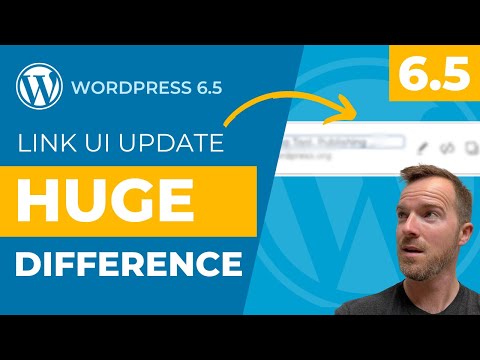
Discover the unexpected yet powerful changes in link editing that have just arrived with WordPress 6.5. As your co-Editor Tech Lead for the WordPress 6.5 release, I'm excited to take you on a journey through these tiny yet impactful link editing changes.
Join me as I explore how these subtle improvements make WordPress 6.5 even better.
⏱ Timecodes
0:00 - Why Link UI?
0:35 - Link Creation in older WordPress
1:25 - Improved Link Creation in WP 6.5
2:51 - Enhanced Link Editing
4:50 - Links in Navigation block
7:01 - Resources & Documentation
🔗 Resource Links - please see pinned comment (below).
Join me - co-Editor Tech Lead for the WordPress 6.5 release - as I delve into custom fonts in WordPress 6.5 Font Library. I'll walk you through installing and using custom fonts on your site without any need for code.
⏱ Timecodes
0:00 - The Font Library
1:33 - Installing new fonts
2:53 - Applying fonts to site elements
3:40 - Uploading Fonts
5:06 - Extending the Font Library
6:54 - Resources & Documentation
I'm joined by Maggie Cabrera, co-lead for the Twenty Twenty Four Theme in WordPress 6.4, as we build out an entire website from scratch for a fictional business.
🔗 Resource Links - please see pinned comment (below).
⏱ Timecodes
00:00 Intro
00:25 Welcome
00:51 Who is Maggie Cabrera?
01:52 Rules for the website build
03:13 Website build (Start)
04:09 Home page template selection
05:18 Styles & Color
07:50 Changing Fonts (Typography)
09:41 Logo and site name
10:48 Adding Homepage Content
13:25 Renaming Homepage Sections
15:23 Blog Post Listing (Query Loop)
16:37 Adding a Background Image
17:16 Preview the Homepage
17:55 About page template selection
19:52 Accordion using Details Block
20:51 Hiding the Page Title
21:39 Our Team page creation
23:04 Customising a Pattern in the Editor
26:13 Lightboxes for Images (Zoom)
27:17 Pricing page
29:13 Navigation Menu updates
30:42 Reusing Content across pages
32:45 Website review
33:15 Switching to Twenty Twenty Four
33:49 Previewing a Theme in WordPress
34:27 Feedback & Questions on TT4
35:20 Follow Maggie Cabrera
35:45 Goodbye
Note: MusoPress is a fictional business and no trade mark violations are intended. If you become aware of a trademark violation please let me know in the comments.

 Login
Login