
 Login
Declaring parent-child cart item relationships in WooCommerce 11.3
In WooCommerce 11.3, the “N in cart” count of the Product Button block (including the button inside Add to Cart with Options) will leave out cart items that an extension declares as children of another cart item.
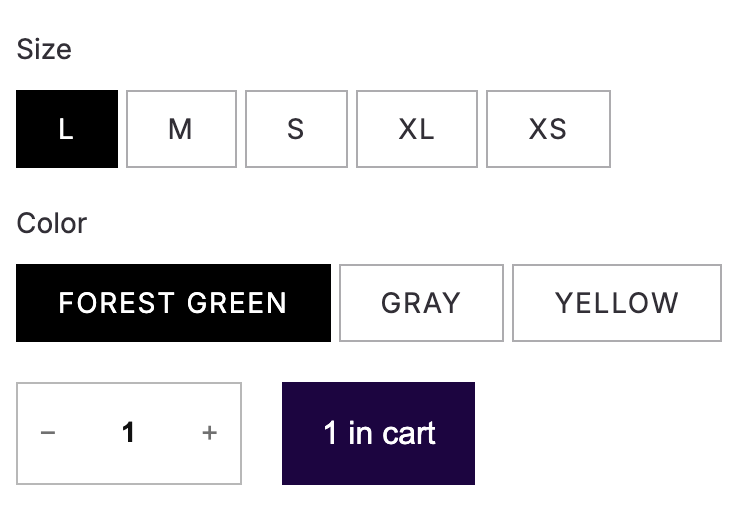
Until now, a product that was in the cart only as part of another item, like a product inside a bundle, made its button say “1 in cart”, even though the shopper never added it on its own. Core can’t tell those items apart from the ones added separately, so the extension that adds them needs to say which item they belong to.
To do that, there’s a new filter, woocommerce_store_api_cart_item_parent_item_key, and a new read-only field in Store API cart items, parent_item_key (a string, or null by default).
A few details:
- WooCommerce never marks an item as a child by itself. Only your extension does.
- The parent key is returned only while the parent item is in the cart. If the shopper removes the parent, or it’s dropped from the cart, the child’s
parent_item_keybecomesnulland it counts as a standalone item again. - If the filter returns a key that doesn’t match an item in the cart, or the item’s own key, WooCommerce returns
null. - If a product appears in several cart lines, the count now adds them all up (before, the hydrated button showed only the first line’s quantity).
For now, the Product Button count is the only place that uses parent_item_key, but the idea is that blocks can rely on it whenever they need to know that an item belongs to another one. For example, in the future the Cart and Mini-Cart blocks could show child items indented under their parent item. So even if the “N in cart” count isn’t a problem for your extension, we think it’s worth declaring the parent of the items your extension adds.
How can developers tell if they are affected?
You’re affected if your extension adds cart items on behalf of another cart item. For example bundles, composite products, mix and match, force sells, chained products or “frequently bought together”.
An easy way to check is to add the parent product to the cart and look at the Product Button of one of the products it added. If it says “1 in cart”, your extension should use the new filter.
Free gift or upsell plugins that add a real product tied to another item can decide either way, because “1 in cart” may be correct for them.
Nothing breaks if you don’t adopt the filter. Those items just keep counting as they do today.
What action do developers need to take if affected?
Store the parent’s cart item key (the one WC()->cart->add_to_cart() returns, not a product ID) in the child’s cart item data, and return it from the filter:
add_filter(
	'woocommerce_store_api_cart_item_parent_item_key',
	function ( $parent_item_key, $cart_item ) {
		return $cart_item['_my_extension_parent_item_key'] ?? $parent_item_key;
	},
	10,
	2
);For any other item, return $parent_item_key unchanged so you don’t erase a parent declared by another extension. You don’t need to clear the stored key when the parent leaves the cart, WooCommerce handles that.
The Store API documentation has a full example, including how to add the parent and the child.
The post Declaring parent-child cart item relationships in WooCommerce 11.3 appeared first on The WooCommerce Developer Blog.


